
How to Take a Full Page Screenshot on Windows 11 Like a Pro
Learn the easiest and most effective methods to capture scrolling full-page screenshots on Windows 11 using built-in browser tools, developer options, and third-party apps.

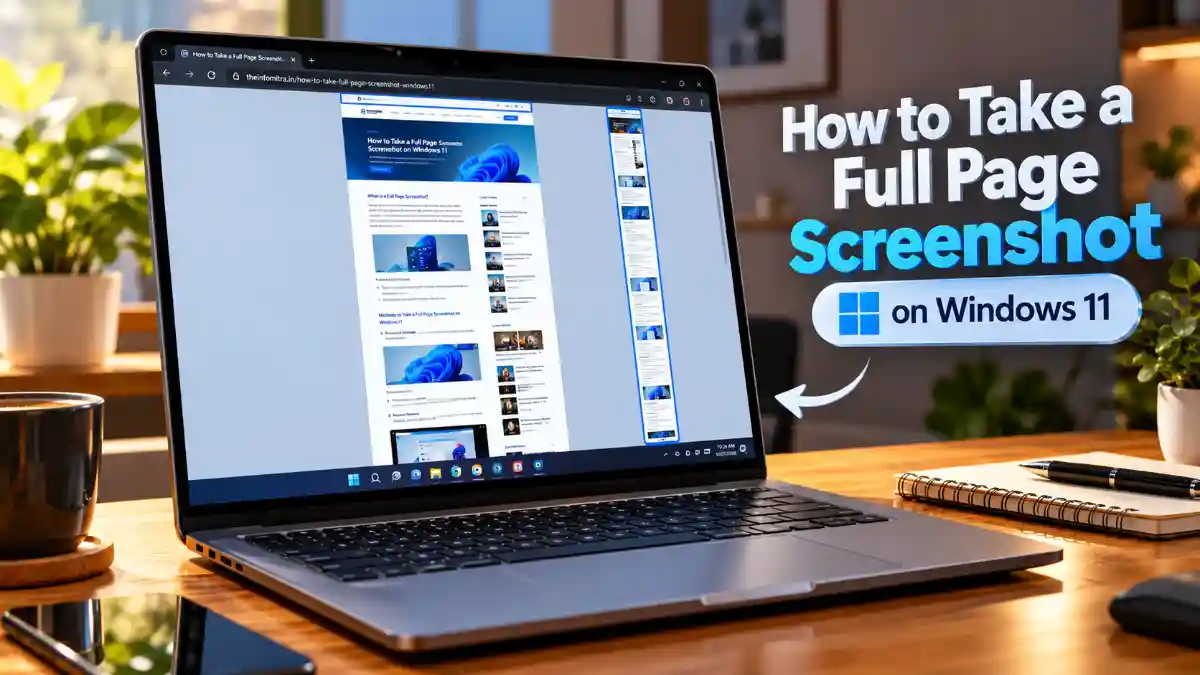
- Quick Highlights: Best Methods for Scrolling Captures
- Method 1: The Native Microsoft Edge Experience
- Method 2: Google Chrome's Hidden Developer Feature
- ShareX: The Open-Source Powerhouse
- Snagit: The Premium Professional Choice
- Evaluating Your Options: Which Method is Best?
- What This Means For Your Workflow
Capturing a standard screenshot on Windows 11 is incredibly straightforward—just hit the Print Screen key or launch the native Snipping Tool, and you have exactly what is visible on your monitor. But what happens when you need to capture an entire web page, a lengthy digital receipt, or a sprawling research article that extends far beyond your immediate display? Taking multiple fragmented screenshots and attempting to piece them together manually is an exercise in pure frustration. It wastes valuable time, and the final stitched image rarely looks professional.
Fortunately, modern operating systems and web browsers have evolved to solve this exact problem beautifully. Whether you are a college student saving study materials for offline reading, a professional archiving financial records, or a web designer documenting site layouts for a client, mastering the scrolling capture is an essential digital skill. While the native Windows Snipping Tool handles basic grabs perfectly, long-form captures require a slightly different approach.
In this comprehensive guide, we will walk you through the absolute best methods for taking continuous, high-resolution scrolling screenshots on your Windows 11 machine. From hidden browser features that require no installation to dedicated software that captures everything on your screen, you will learn exactly how to grab long-form content effortlessly.
Quick Highlights: Best Methods for Scrolling Captures
- Microsoft Edge: The easiest built-in method using the native "Web capture" tool without installing any extensions.
- Google Chrome (No Extensions): Utilizing the hidden Developer Tools command menu for pixel-perfect full-page grabs.
- Browser Extensions: Lightweight add-ons like GoFullPage for one-click capturing in Chrome and Brave.
- Dedicated Desktop Software: Using advanced tools like ShareX or Snagit to capture scrolling documents outside of web browsers (like Word or Excel).
Method 1: The Native Microsoft Edge Experience
If you are using Windows 11, Microsoft Edge is already installed on your system, and it houses one of the most robust, user-friendly screenshot tools available today. Microsoft integrated a native "Web capture" feature directly into the browser, completely eliminating the need for third-party extensions when saving web content.
To use this feature, simply open the webpage you wish to capture in Microsoft Edge. Press the keyboard shortcut combination Ctrl + Shift + S. A small overlay menu will appear at the top center of your screen presenting two options: "Capture area" and "Capture full page". Click on "Capture full page".
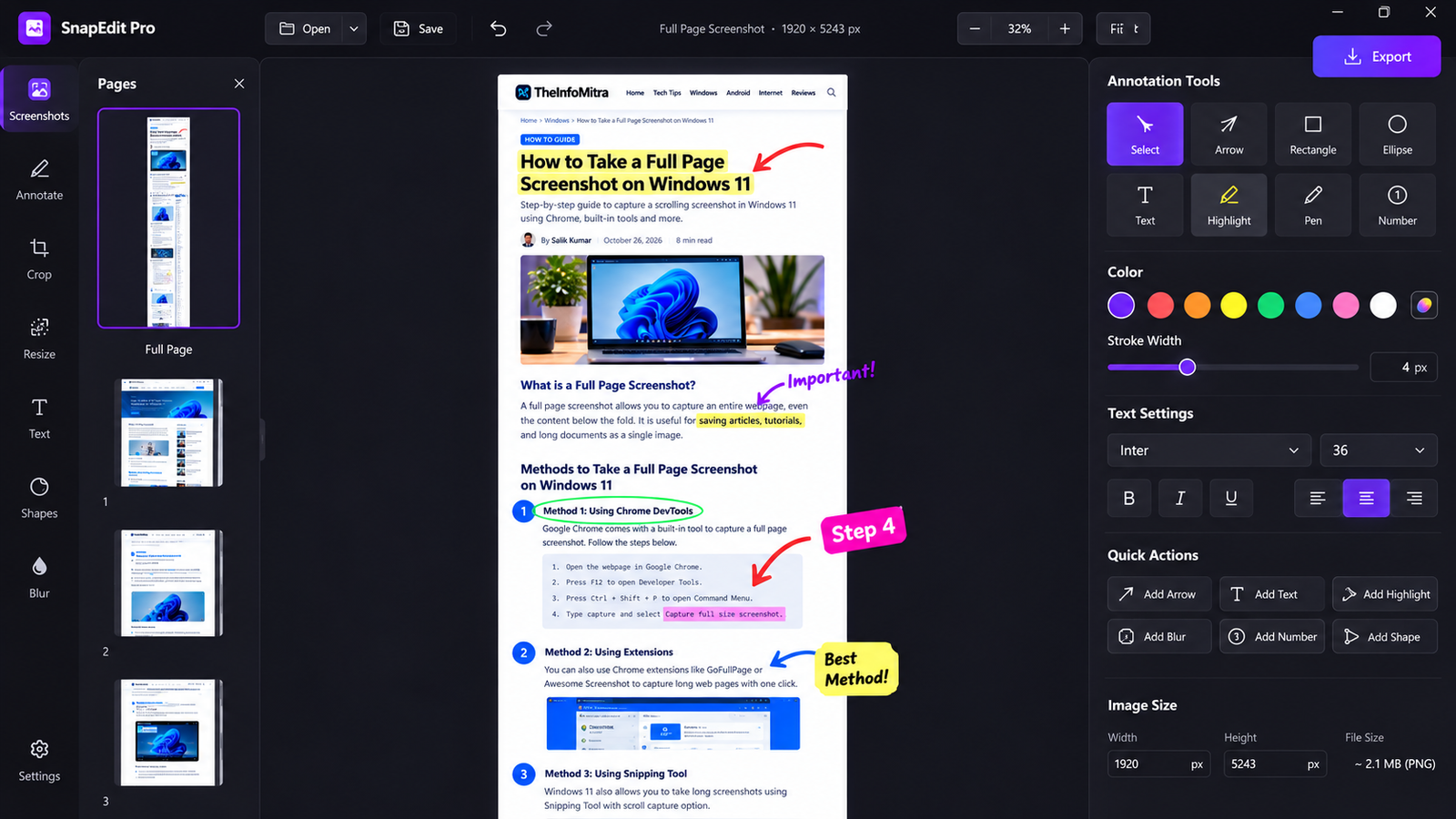
The browser will immediately simulate a scrolling action and capture the entire length of the webpage from top to bottom. Once the capture is complete, Edge opens a built-in markup window. Here, you can use digital ink to draw arrows, highlight text, or circle important information. When you are satisfied with the edits, simply click the floppy disk icon to save the continuous image directly to your local Downloads folder as a high-quality JPEG file.
Method 2: Google Chrome's Hidden Developer Feature
Google Chrome remains the most popular browser globally, but many users are unaware that it possesses a built-in full-page screenshot engine hidden away inside its Developer Tools. This method is fantastic because it requires zero extensions and captures the page exactly as the browser renders it, avoiding the formatting glitches that sometimes plague third-party add-ons.
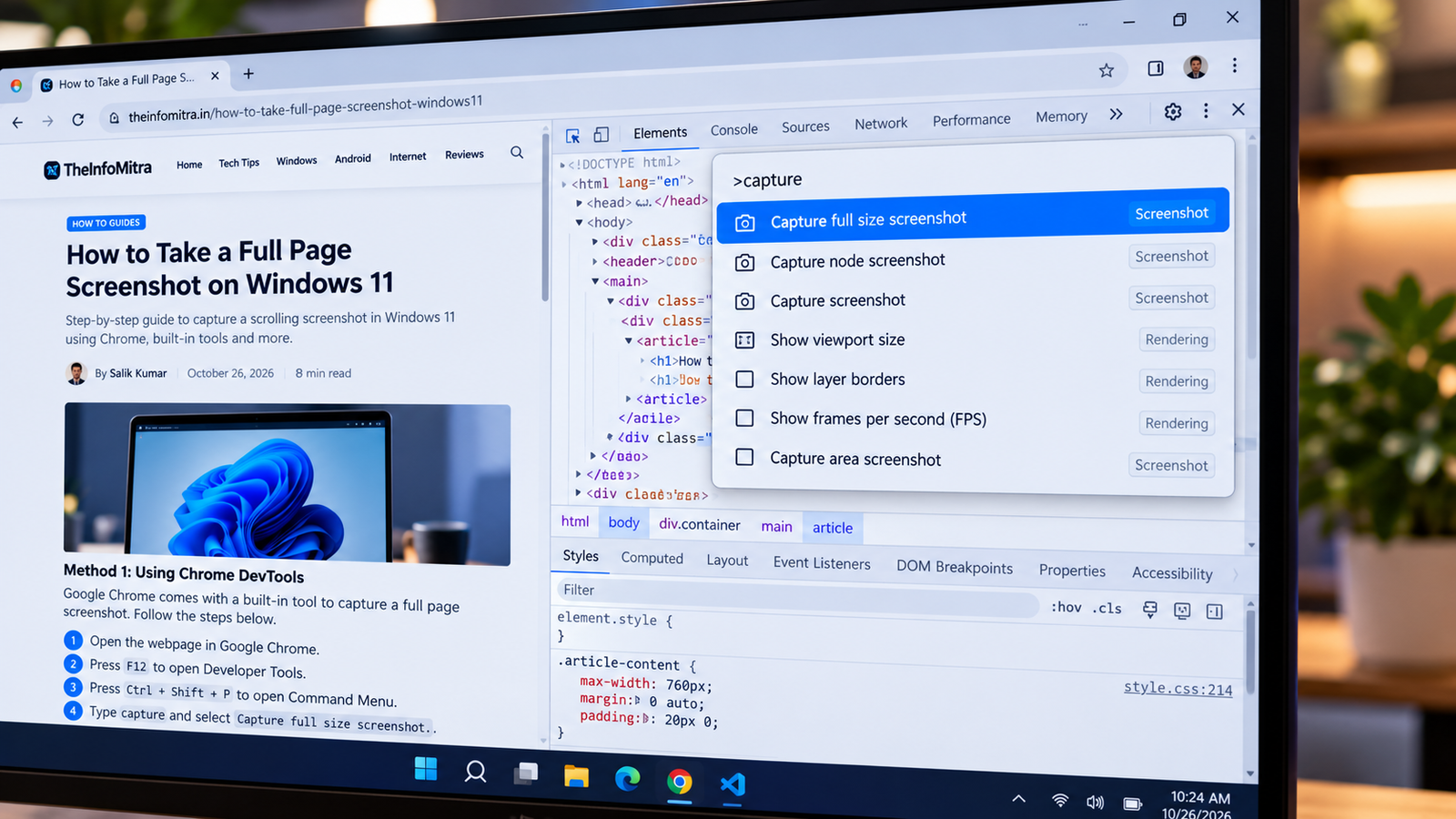
To access this hidden feature, navigate to your desired webpage in Chrome. Press F12 (or Ctrl + Shift + I) to open the Developer Tools panel on the right side of your screen. Do not let the complex code intimidate you; you will not be altering any of it. Next, press Ctrl + Shift + P to open the Run Command search bar.
Type the word "screenshot" into this search bar. A list of options will filter down, and you will see an action labeled "Capture full size screenshot". Click this option. Chrome will take a few seconds to silently scroll through the page in the background and will automatically download a crisp, full-length PNG image file directly to your computer. This method is particularly beloved by web developers because of its flawless accuracy and high resolution.
]Method 3: The Power of Dedicated Desktop Applications
While browser-based solutions are phenomenal for web pages, they fall short when you need to capture scrolling content inside a desktop application, such as a multi-page Microsoft Word document, a massive Excel spreadsheet, or the Windows 11 Settings menu. For these scenarios, you need dedicated desktop software.
ShareX: The Open-Source Powerhouse
ShareX is widely considered the holy grail of screenshot utilities for Windows users. It is completely free, open-source, and devoid of advertisements. Once installed, ShareX offers a specific "Scrolling capture" tool. When activated, you simply click on the window you want to capture. ShareX will then automatically scroll the application window down, taking multiple rapid-fire screenshots and stitching them together seamlessly using intelligent image recognition. It is an incredibly powerful tool, though its vast array of settings can present a slight learning curve for absolute beginners.
Snagit: The Premium Professional Choice
If you are capturing screens for professional documentation, corporate training manuals, or client presentations, TechSmith's Snagit is the industry gold standard. Snagit features a proprietary "Panoramic Capture" mode. Unlike older tools that force you to scroll at a specific robotic speed, Panoramic Capture allows you to manually scroll up, down, or even side-to-side at your own natural pace. Snagit acts like a digital video camera, recording the spatial layout and generating a flawless, high-resolution composite image. While it is a paid application, the time it saves professionals makes it a highly worthwhile investment.
Method 4: Firefox and Third-Party Browser Extensions
If Mozilla Firefox is your browser of choice, you have it just as easy as Edge users. Firefox has a native tool accessible by simply right-clicking any empty space on a webpage and selecting "Take Screenshot". You are then presented with an option to "Save full page". It is instantaneous and saves directly to your clipboard or local drive.
For those who prefer Chrome but find the Developer Tools method too cumbersome for daily use, the Chrome Web Store offers excellent lightweight extensions. "GoFullPage" is widely regarded as the best and most reliable option. It requires no special permissions to access your local files, and with a single click of its puzzle-piece icon, it animates a scanning process across the page, ultimately delivering a perfect PDF or PNG download.
Evaluating Your Options: Which Method is Best?
- For Occasional Web Captures: Microsoft Edge's native tool or Firefox's right-click option are the absolute best. They require no setup and keep your browser free of extension bloat.
- For Tech-Savvy Chrome Users: The F12 Developer Tools method is unbeatable. It delivers the highest quality render without relying on third-party developers.
- For Desktop Apps and Documents: You must use a desktop utility. ShareX is the best free option, while Snagit provides the best premium, user-friendly experience.
What This Means For Your Workflow
Transitioning from taking multiple disjointed screen grabs to capturing fluid, continuous documents will massively streamline your digital workflow. The built-in capabilities of modern browsers like Edge and Chrome have largely eliminated the need to download shady, ad-filled freeware just to save a long recipe or an extended news article. By incorporating these native shortcuts into your daily routine, or by utilizing a trusted open-source tool like ShareX for system-wide captures, you ensure your digital archives are clean, readable, and highly professional.
Important Note: When taking full-page screenshots of banking portals, personal emails, or confidential documents, always review the final image carefully. Since scrolling captures grab everything on the page, it is easy to inadvertently save and share sensitive personal information that was located further down the page. Use built-in markup tools to redact or blur private data before sharing.
Frequently Asked Questions
Quick answers to common questions about this article
Q1: Can the native Windows 11 Snipping Tool take scrolling screenshots?
Q2: Why do my full-page screenshots look blurry when I zoom in?
Q3: How do I capture a long PDF document that requires scrolling?
Q4: Where does Microsoft Edge save the full-page screenshots by default?
Q5: Is it safe to use browser extensions for taking screenshots?
Salik Kumar
Founder & Lead Tech Analyst. Dedicated author focusing on high-quality, well-researched, and policy-compliant digital content.
Discussion (0)
No comments yet. Be the first to share your perspective on this topic.
Join the Conversation